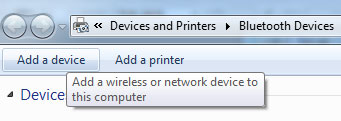
2. Once the bluetooth manager window is open click on add a device.
 3. When the bluetooth manager (on Windows 7) searches for a device, press the button beneath MSI BM500 mouse, you’ll need a pen to press the button.
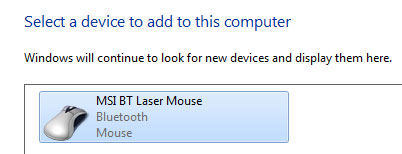
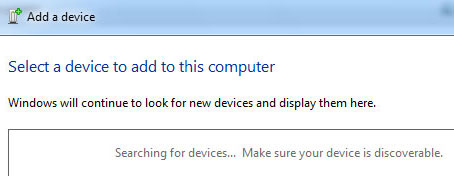 4. After pressing the button underneath the mouse, your system should be able to “see” the mouse.
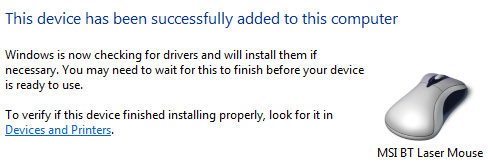
 5. The operating system will then search a suitable driver and install it automatically. Once you see the following dialogue window, your mouse should be ready to use.
 And oh, here’s an updated review as well of the MSI BM500 mouse on Windows 7. Seems like with Windows 7 the mouse has been behaving a lot better compared to Windows XP. Hope this helps ^_^
]]>
And oh, here’s an updated review as well of the MSI BM500 mouse on Windows 7. Seems like with Windows 7 the mouse has been behaving a lot better compared to Windows XP. Hope this helps ^_^
]]>