Before you can enable SMS reminder on your google calendar you need to set it up with your mobile phone. Once you’ve verified your mobile phone with Google calendar the rest is pretty easy.
1. Begin by clicking on the Settings link on the upper left section of google calendar.
 2. Click on the Calendars tab, you should see a list of available calendars. On the right side there’s a column with a link named Notifications. Click on the link.
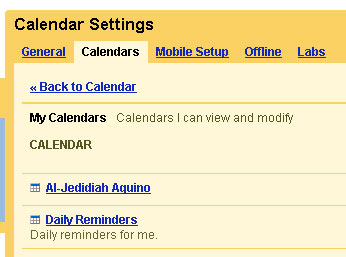 3. You should see reminder options in the window. On my current configuration, I have set it to remind me via SMS an hour earlier and send me an e-mail an hour earlier as well. You can change this if you want.
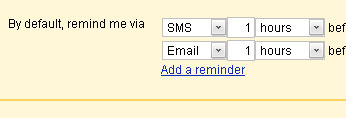 4. You can add another reminder option (pop-up) or you can change it to only have one (SMS or e-mail or pop-up whichever you prefer).
5. Once you’ve chosen your option click Save and you are done.
Whenever you add an event in your calendar, you will be reminded via SMS depending on your setting. This way you shouldn’t be able to forget any of your appointments, assuming you don’t forget your mobile phone.
4. You can add another reminder option (pop-up) or you can change it to only have one (SMS or e-mail or pop-up whichever you prefer).
5. Once you’ve chosen your option click Save and you are done.
Whenever you add an event in your calendar, you will be reminded via SMS depending on your setting. This way you shouldn’t be able to forget any of your appointments, assuming you don’t forget your mobile phone.
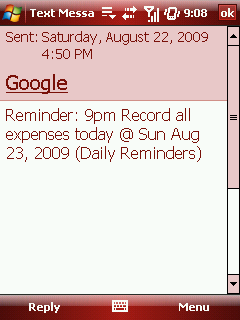 Here’s a screen shot of a Google calendar reminder sent to my Windows Mobile. Hope this helps. ^_^
]]>